The post Pip Install Specific Version of a Python Package: 2 Steps appeared first on Erik Marsja.
In this Python tutorial, you will learn how to use pip install a specific version of a package. The outline of the post (as also can be seen in the ToC) is as follows. First, you will get a brief introduction with examples on when you might need to install an older version of a package. Second, you will get the general syntax for how to carry out this task. After that, you will get two steps to installing specific versions of Python packages with pip. In this section, you will also learn how to work with a virtual environment. In the next section, we will look at how to specify the version of multiple Python packages by creating a .txt file.
Why install an older version of a package?
Now, there may be several reasons that you may want to install a specific version of a Python package. For example, you may need to install an older version of a package if the package has changed in a way that is not compatible with the version of Python you have installed, with other packages that you have installed, or with your Python code. As previously mentioned, we are going to work with the package manager pip, but it is also possible to install a specific version of a package if you use other package managers. For example, it is also possible if you use the package manager conda (Anaconda Python distribution).
Here are some instructions on how to install a specific (e.g, older) version of a Python package:
Pip’s Syntax for Installing a Specific Version of a Package
Here’s the general syntax that you can use to install an older version of a Python package:
pip install <PACKAGE>==<VERSION>As you may understand, now, you exchange “<PACKAGE>” and “<VERSION>” for the name of the package and the version you want to install, respectively. Don’t worry, the next section will show you, by example, more exactly how this is done.

If you get the warning, as in the image above, you can upgrade pip to the latest version: pip --install upgrade pip.
Steps to Install Specific Version of a Package with Pip:
In this section, you will learn how to install an older version of a Python package using pip. First, I would recommend creating a virtual environment. Therefore, you will first learn how to install the virtual environment package, create a virtual environment, and install a specific version of a Python package.
1) Install virtualenv and create an environment
First, you should install the virtualenv package. Here’s how to install a Python package with pip:
pip install virtualenv
Second, you should create, and then activate, your virtual environment:
virtualenv myproject source myproject/bin/activate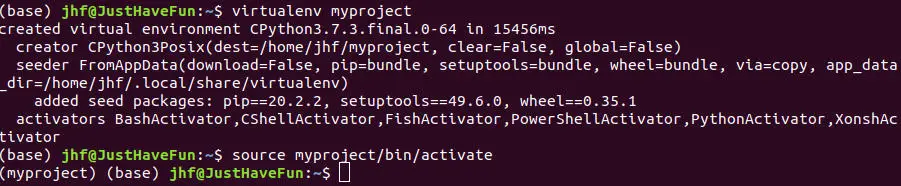
Now that you have your virtual environment setup, you can go on to the next step and install an older version of a Python package.
2) Install the Specific Version you Need with Pip
Now, that your virtual environment is ready to use. Here’s how to use pip to install a specific version of the package Pandas:
pip install pandas==1.1.1It is, of course, possible to add more packages and their versions if you have many packages that you want to install a certain version of. However, this may be cumbersome and in the next section, we will have a look at how to deal with installing older versions of multiple packages. That is, when storing them in a text file.
Dealing with Multiple Packages and Installing Specific Versions
That was pretty simple, but using the above steps may not be useful if you, for instance, need to install a lot of Python packages. When we are installing packages using pip we can create a .txt file (e.g., requirements.txt). Here’s an example text file with a few Python packages and their versions:
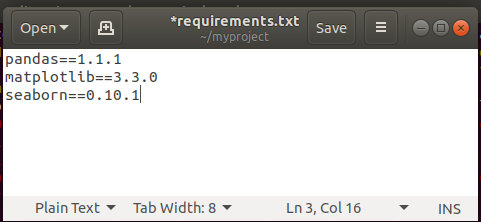
As you can see, you should keep each package on one line in the text file. Moreover, you should follow the syntax you’ve learned earlier in the post. This is also evident in the image above. Here’s how to install a specified version of multiple packages using the text file:
pip install -r myproject/requirements.txtNow, installing an older version of one package can lead to some problems with the packages dependencies. You will still get the newest versions of the dependencies. That is, that the version you use allows, of course. One backside of this is that it can later break your application or work flow. Luckily, there are some solutions to combat this issue. For example, if you want your data analysis to be reproducible using Binder, Jupyter Notebooks, and Python may be a solution. However, if you are developing applications you may need to have another strategy. In the last section, we will have a look at another Python package that may be useful: Pipenv (see resources, at the bottom for a great tutorial on Pipenv).
Conclusion
In this brief Python tutorial, you learned how to use pip to install a certain version of a package. First, you learned the syntax of pip, for specifying a version. After that, you learned how to 1) create a virtual environment, and 2) install the version of a package you needed. In the final section, we had a look on how to deal with multiple packages of certain versions. That is, how to set the version of multiple packages you wanted to install.
If you have any suggestions or corrections to the current post, please leave a comment below. I always appreciate when I get to learn from others.
Resources
Here are some useful packages and tutorials as well as the documentation that may be worth having a look at:
- Pipx: Installing, Uninstalling, & Upgrading Python Packages in Virtual Envs
- Pipenv
- Virtualenv documentation
- Pip documentation
- Pipenv guide

The post Pip Install Specific Version of a Python Package: 2 Steps appeared first on Erik Marsja.
from Planet Python
via read more


No comments:
Post a Comment