This tutorial explains how to read a CSV file in python with pandas. It outlines many examples of loading a CSV file into Python. Pandas is an awesome package for data manipulation. It includes various functions to load and import data from various formats. In this post, we will see how to load comma separated files with several use cases.
Load Package
You have to load required package i.e. pandas. Run the following command to load it.
The program below creates a sample data frame which can be used further for demonstration.
Save data as CSV in the working directory
The following command tells python to write data in CSV format.
It's the basic syntax of read_csv() function. You just need to mention the filename.
Example 3 : Specify missing values
The na_values= options is used to set some values as blank / missing values.
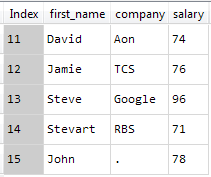
Example 4 : Set Index Column
As you can see in the above image, the column ID has been set as index column.
Example 5 : Read CSV File from URL
You can directly read data from the CSV file that is stored on a web link.
Example 6 : Skip First 5 Rows While Importing CSV
Example 7 : Skip Last 5 Rows While Importing CSV
Example 8 : Read only first 5 rows
Example 9 : Interpreting "," as thousands separator
Example 11 : Read some rows and columns
Load Package
You have to load required package i.e. pandas. Run the following command to load it.
import pandas as pdCreate Sample Data for Import
The program below creates a sample data frame which can be used further for demonstration.
dt = {'ID': [11, 12, 13, 14, 15],The sample data looks like below -
'first_name': ['David', 'Jamie', 'Steve', 'Stevart', 'John'],
'company': ['Aon', 'TCS', 'Google', 'RBS', '.'],
'salary': [74, 76, 96, 71, 78]}
mydt = pd.DataFrame(dt, columns = ['ID', 'first_name', 'company', 'salary'])
 |
| Sample Data |
The following command tells python to write data in CSV format.
mydt.to_csv('workingfile.csv', index=False)Example 1 : Read CSV file with header row
It's the basic syntax of read_csv() function. You just need to mention the filename.
mydata = pd.read_csv("workingfile.csv")Example 2 : Read CSV file without header row
mydata0 = pd.read_csv("workingfile.csv", header = None)If you specify "header = None", python would assign a series of numbers starting from 0 to (number of columns - 1). See the output shown below -
 |
| Output |
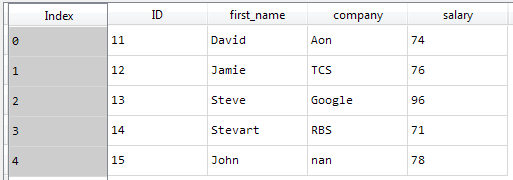
The na_values= options is used to set some values as blank / missing values.
mydata00 = pd.read_csv("workingfile.csv", na_values=['.'])
 |
| Set Missing Values |
Example 4 : Set Index Column
mydata01 = pd.read_csv("workingfile.csv", index_col ='ID')
 |
| Python : Setting Index Column |
Example 5 : Read CSV File from URL
You can directly read data from the CSV file that is stored on a web link.
mydata02 = pd.read_csv("http://winterolympicsmedals.com/medals.csv")
Example 6 : Skip First 5 Rows While Importing CSV
mydata03 = pd.read_csv("http://bit.ly/1Xokth4", skiprows=5)It reads data from 6th row (6th row would be a header row)
Example 7 : Skip Last 5 Rows While Importing CSV
mydata04 = pd.read_csv("http://bit.ly/1Xokth4", skip_footer=5)In the above code, we are excluding bottom 5 rows using skip_footer= parameter.
Example 8 : Read only first 5 rows
mydata05 = pd.read_csv("http://bit.ly/1Xokth4", nrows=5)Using nrows= option, you can load top K number of rows.
Example 9 : Interpreting "," as thousands separator
mydata06 = pd.read_csv("http://bit.ly/1Xokth4", thousands=",")Example 10 : Read only specific columns
mydata07 = pd.read_csv("http://bit.ly/1Xokth4", usecols=(1,5,7))The above code reads only columns placed at first, fifth and seventh position.
Example 11 : Read some rows and columns
mydata08 = pd.read_csv("http://bit.ly/1Xokth4", usecols=(1,5,7),nrows=5)
In the above command, we have combined usecols= and nrows= options. It will select only first 5 rows and selected columns.
Example 12 : Read file with semi colon delimiter
Example 12 : Read file with semi colon delimiter
mydata09 = pd.read_csv("file_path", sep = ';')
Using sep= parameter in read_csv( ) function, you can import file with semi-colon delimiter.
from Planet Python
via read more


No comments:
Post a Comment