Monday, November 1, 2021

Python's zipapp: Build Executable Zip Applications

A Python Zip application is a quick and cool option for you to bundle and distribute an executable application in a single ready-to-run file, which will make your end users’ experience more pleasant. If you want to learn about Python applications and how to create them using zipapp from the standard library, then this tutorial is for you.

You’ll be able to create Python Zip applications as a quick and accessible way to distribute your software products to your end users and clients.

In this tutorial, you’ll learn:

  • What a Python Zip application is
  • How Zip applications work internally
  • How to build Python Zip applications with zipapp
  • What standalone Python Zip apps are and how to create them
  • How to create Python Zip apps manually using command-line tools

You’ll also learn about a few third-party libraries for creating Zip applications that overcome some limitations of zipapp.

To better understand this tutorial, you need to know how to structure Python application layouts, run Python scripts, build Python packages, work with Python virtual environments, and install and manage dependencies with pip. You also need to be comfortable using the command line or terminal.

Getting Started With Python Zip Applications

One of the most challenging problems in the Python ecosystem is finding an effective way to distribute executable applications, such as graphical user interface (GUI) and command-line interface (CLI) programs.

Compiled programming languages, such as C, C++, and Go, can generate executable files that you can run directly on different operating systems and architectures. This ability makes it easy for you to distribute software to your end users.

However, Python doesn’t work like that. Python is an interpreted language, which means that you need a suitable Python interpreter to run your applications. There’s no direct way to generate a standalone executable file that doesn’t need an interpreter to run.

There are many solutions out there that aim to solve this issue. You’ll find tools such as PyInstaller, py2exe, py2app, Nuitka, and more. Those tools allow you to create self-contained executable applications that you can distribute to your end users. However, setting these tools up can be a complex and challenging process.

Sometimes you don’t need that extra complexity. You just need to build an executable app from a script or a small program so that you can distribute it to your end users quickly. If your application is small enough and uses pure Python code, then you can be well-served with a Python Zip application.

What Is a Python Zip Application?

PEP 441 – Improving Python ZIP Application Support formalized the idea, terminology, and specification around Python Zip applications. This type of application consists of a single file that uses the ZIP file format and contains code that Python can execute as a program. These applications rely on Python’s ability to run code from ZIP files that have a __main__.py module at their root, which works as an entry-point script.

Python has been able to run scripts from ZIP files since versions 2.6 and 3.0. The steps to achieve that are pretty straightforward. You just need a ZIP file with a __main__.py module at its root. You can then pass that file to Python, which adds it to sys.path and executes __main__.py as a program. Having the application’s archive in sys.path allows you to access its code through Python’s import system.

As a quick example of how all that works, say you’re on a Unix-like operating system, such as Linux or macOS, and you run the following commands:

$ echo 'print("Hello, World!")' > __main__.py

$ zip hello.zip __main__.py
  adding: __main__.py (stored 0%)

$ python ./hello.zip
Hello, World!

You use the echo command to create a __main__.py file containing the code print("Hello, World!"). Then you use the zip command to archive __main__.py into hello.zip. Once you’ve done that, you can run hello.zip as a program by passing the filename as an argument to the python command.

To round up the internal structure of Python Zip applications, you need a way to tell the operating system how to execute them. The ZIP file format allows you to prepend arbitrary data at the beginning of a ZIP archive. Python Zip applications take advantage of that feature to include a standard Unix shebang line in the application’s archive:

#!/usr/bin/env python3

On Unix systems, this line tells the operating system which program to use for executing the file at hand so that you can run the file directly without the python command. On Windows systems, the Python launcher properly understands the shebang line and runs the Zip application for you.

Even with a shebang line, you can always execute a Python Zip application by passing the application’s filename as an argument to the python command.

In summary, to build a Python Zip application, you need:

  • An archive that uses the standard ZIP file format and contains a __main__.py module at its root
  • An optional shebang line that specifies the appropriate Python interpreter to run the application

Read the full article at https://realpython.com/python-zipapp/ »


[ Improve Your Python With ๐Ÿ Python Tricks ๐Ÿ’Œ – Get a short & sweet Python Trick delivered to your inbox every couple of days. >> Click here to learn more and see examples ]


from Real Python
read more

Stack Abuse: Using borb to Create E-books From Project Gutenberg

The Portable Document Format (PDF) is not a WYSIWYG (What You See is What You Get) format. It was developed to be platform-agnostic, independent of the underlying operating system and rendering engines.

To achieve this, PDF was constructed to be interacted with via something more like a programming language, and relies on a series of instructions and operations to achieve a result. In fact, PDF is based on a scripting language - PostScript, which was the first device-independent Page Description Language.

In this guide, we'll be using borb - a Python library dedicated to reading, manipulating and generating PDF documents. It offers both a low-level model (allowing you access to the exact coordinates and layout if you choose to use those) and a high-level model (where you can delegate the precise calculations of margins, positions, etc to a layout manager).

In this guide, we'll take a look at how to convert a UTF-8 book (from Project Gutenberg) to a PDF document.

Project Gutenberg eBooks may be freely used in the United States because most are not protected by U.S. copyright law. They may not be free of copyright in other countries.

Installing borb

borb can be downloaded from source on GitHub, or installed via pip:

$ pip install borb

Installing unidecode

For this project we will also use unidecode, it's a wonderful little library that converts text from UTF-8 to ASCII. Keep in mind that not every character in UTF-8 can be represented as an ASCII character.

This is a lossy conversion, in principle so there will be some discrepancy every time you do a conversion:

$ pip install unidecode

Creating a PDF Document with borb

Creating a PDF document using borb typically follows the same steps every time:

from borb.pdf.document import Document
from borb.pdf.page.page import Page
from borb.pdf.pdf import PDF

import typing
import re

from borb.pdf.canvas.layout.page_layout.multi_column_layout import SingleColumnLayout
from borb.pdf.canvas.layout.page_layout.page_layout import PageLayout

# Create empty Document
pdf = Document()

# Create empty Page
page = Page()

# Add Page to Document
pdf.append_page(page)

# Create PageLayout
layout: PageLayout = SingleColumnLayout(page)

Creating E-books with borb

Note: We'll be dealing with raw text books. Each book will have a different structure and each book requires a different approach to rendering. This is a highly subjective (styling) and highly book-dependent task, though, the general process is the same.

The book we'll be downloading is UTF-8 encoded. Not every font supports every character. In fact, the PDF spec defines 14 standard fonts (which every reader/writer ought to have embedded), none of which support the full UTF-8 range.

So, to make our lives a bit easier, we're going to be using this little utility function to convert a str to ASCII:

from unidecode import unidecode

def to_ascii(s: str) -> str:
    s_out: str = ""
    for c in s:
      if c == '“' or c == '”' or c == 'รข':
        s_out += '"'
      else:
        s_out += unidecode(c)  
    return s_out

Next, in our main method, we're going to be downloading the UTF-8 book.

In our example, we'll be using "The Mysterious affair at Styles" by Agatha Christie, which can be easily obtained in raw format from Project Gutenberg:

# Define which ebook to fetch
url = 'https://www.gutenberg.org/files/863/863-0.txt'

# Download text
import requests
txt = requests.get(url).text
print("Downloaded %d bytes of text..." % len(txt))

# Split to lines
lines_of_text: typing.List[str] = re.split('\r\n', txt)
lines_of_text = [to_ascii(x) for x in lines_of_text]

# Debug
print("This ebook contains %d lines... " % len(lines_of_text))

This prints:

Downloaded 361353 bytes of text...
This ebook contains 8892 lines...

The first lines of text are a general header added by Project Gutenberg. We don't really want that in our ebook so we're going to simply delete it, by checking whether a line starts with a certain pattern and slicing it off via the slice notation:

# Skip header
header_offset: int = 0
for i in range(0, len(lines_of_text)):
  if lines_of_text[i].startswith("*** START OF THE PROJECT GUTENBERG EBOOK"):
    header_offset = i + 1
    break
while lines_of_text[header_offset].isspace():
  header_offset += 1
lines_of_text = lines_of_text[header_offset:]
print("The first %d lines are the gutenberg header..." % header_offset)

This prints:

The first 24 lines are the gutenberg header...

Similarly, the last lines of text are just a copyright notice. We'll delete that as well:

# Skip footer
footer_offset: int = len(lines_of_text)
for i in range(0, len(lines_of_text)):
    if "*** END OF THE PROJECT GUTENBERG EBOOK" in lines_of_text[i]:
      footer_offset = i
      break
lines_of_text = lines_of_text[0:footer_offset]
print("The last %d lines are the gutenberg footer .." % (len(lines_of_text) - footer_offset))

With that out of the way, we're going to process the main body of text.

This code took some trial and error and if you're working with a different book - it will take some trial and error too.

Figuring out when to insert a chapter title, when to start a new paragraph, what the table of contents is, etc. depends on the book as well. This is an opportunity to play around with borb a bit, and try to parse the input yourself with a different book:

from borb.pdf.canvas.layout.text.paragraph import Paragraph
from borb.pdf.canvas.layout.text.heading import Heading
from borb.pdf.canvas.color.color import HexColor, X11Color
from decimal import Decimal

# Main processing loop
i: int = 0
while i < len(lines_of_text):
  
    # Process lines
    paragraph_text: str = ""
    while i < len(lines_of_text) and not len(lines_of_text[i]) == 0:
      paragraph_text += lines_of_text[i]
      paragraph_text += " "
      i += 1

    # Empty line
    if len(paragraph_text) == 0:
      i += 1
      continue

    # Space
    if paragraph_text.isspace():
      i += 1
      continue

    # Contains the word 'CHAPTER' multiple times (likely to be table of contents)
    if sum([1 for x in paragraph_text.split(' ') if 'CHAPTER' in x]) > 2:
      i += 1
      continue

    # Debug
    print("Processing line %d / %d" % (i, len(lines_of_text)))

    # Outline
    if paragraph_text.startswith("CHAPTER"):
      print("Adding Header of %d bytes .." % len(paragraph_text))
      try:
        page = Page()
        pdf.append_page(page)
        layout = SingleColumnLayout(page)
        layout.add(Heading(paragraph_text, font_color=HexColor("13505B"), font_size=Decimal(20)))
      except:
        pass
      continue

    # Default
    try:
        layout.add(Paragraph(paragraph_text))
    except:
      pass
  
    # Default behaviour
    i += 1

All that's left is to store the final PDF document:

with open("output.pdf", "wb") as pdf_file_handle:
    PDF.dumps(pdf_file_handle, pdf)

creating pdf ebooks with borb

Conclusion

In this guide you've learned how to process a large piece of text and create a PDF out of it automatically using borb.

Creating books from raw text files is not a standard process, and you'll have to test things out and play around with the loops and the way you treat text to get it right.


from Planet Python
via read more

Zero to Mastery: Python Monthly Newsletter ๐Ÿ’ป๐Ÿ October 2021

23rd issue of the Python Monthly Newsletter! Read by 20,000+ Python developers every month. This monthly Python newsletter covers the latest Python news so that you stay up-to-date with the industry and keep your skills sharp.

from Planet Python
via read more

Django Weblog: Django bugfix release: 3.2.9

Today we've issued the 3.2.9 bugfix release.

The release package and checksums are available from our downloads page, as well as from the Python Package Index. The PGP key ID used for this release is Mariusz Felisiak: 2EF56372BA48CD1B.


from Planet Python
via read more

Mike Driscoll: PyDev of the Week: Tzu-ping Chung

This week we welcome Tzu-ping Chung (@uranusjr) as our PyDev of the Week! Tzu-ping is a member of Python Packaging Authority (PyPA) and a maintainer of pip and pipx. You can see what else Tzu-ping has been contributing to over on GitHub. He also maintains a website.

Let's take some time to get to know Tzu-ping better!

Can you tell us a little about yourself (hobbies, education, etc)

I’m a developer based in Taipei, Taiwan. I am currently employed by Astronomer to work on the open source project Apache Airflow.

Aside from work, I’m a member of the Python Packaging Authority (PyPA) and help maintain multiple Python packaging-related projects such as pip and pipx, and (co-)authored several Python Enhancement Proposals (PEPs) around the area.

I am also involved in events around Taiwan and the APAC area, helping organise community events, and served as Chairperson for PyCon Taiwan during 2017–2018.

Primarily trained as a mechatronic engineer in college, I started my career working with microprocessors and embedded systems. These days I’m no longer involved with hardware anymore, however.

I like to listen to people talk and have been enjoying a lot of the “Virtual” YouTuber (vtuber) talk streams. My favourite streamer is Natori Sana, but many other streamers are much fun as well. I also like trivia and enjoy quiz shows.

Why did you start using Python?

I first picked up Python during graduate school for NumPy and SciPy to replace MATLAB to do simulation for my thesis since my university did not provide free licenses for the Mac version. I was introduced to Django at my first job and began learning web development. Python ended up gradually pulling me more and more toward software development and to where I am right now.

How did you get into contributing to open source?

My first non-trivial open source contribution was fixing an SQL generation bug in the ORM. I never completed the patch (the task was eventually completed by another contributor), but the process of discussing the root cause, tracing implementation, experimenting the fix, writing tests, and the interaction with project maintainers gave me a lot of confidence participating in the community.

Any advice for people who would like to start contributing to FOSS?

Find a project and community you feel comfortable working with. Some projects put a lot of effort in accomodating new contributors; look whether the project has a good contributing guide, or a “good first issue” label on the issue tracker. Many projects participate in conferences and sprints, or even host dedicated contributors’ workshops, which are the best way for newcomers to learn about contributing directly from maintainers.

Interaction with people is an important part since open source is all about communication, and online communication is very prone to
misunderstandings. One good rule of thumb is to treat a project’s maintainers as a group of people whose conversation you want to join. Don’t be shy, but also be polite (always ask yourself *would I say this to a stranger in real time?*) You can expect some defensiveness, but if the maintainers get hostile, leave the conversation as soon as possible.

Brett Cannon’s blog post The social contract of open source is a very good read I’d recommend to all aspiring FOSS contributors.

What other programming languages do you know & which is your favourite?

My first entry to serious programming was through C and Objective-C when I got my first Mac. Objective-C will always have a special place in my heart since it taught me many programming habits and ideas that are still invaluable to me to this day, and I especially appreciate how it (plus the CoreFoundation framework) gets things done with simplistic but powerful designs.

I also learned C++ during my mechatronics days, but can’t no longer claim to have any efficiency in it anymore. Rust is probably my choice if I am pressed to do system programming now. Its ownership and borrowing concepts are really, really nice—and worthwhile to integrate into projects written in other languages even if they don’t have the same checker features!

What projects are you working on now?

I’ve recently been working on a new Airflow feature called “timetable” that generalises DAG scheduling and allows more customization
possibilities. A new concept called “data interval” will also be introduced to make timetables and DAG scheduling, in general, easier to understand.

On the Python packaging side, I’ve been working on pip’s dependency resolution logic since 2020, which is an ongoing battle to support a myriad of package combinations since Python is used in diversive things (it’s a good problem to have). I’m also working on modernising Python packaging tools to adopt more modern concepts, in the form of PEP 621, PEP 665, and some other ideas still in the works.

Which Python libraries are your favourite (core or 3rd party)?

My favourite has to go to Django, not only for the code, but also how the project is run. I have only the greatest respect to everyone working on the project, seeing how it keeps pace with the ever-changing web landscape and continuously being rock-solid and innovative at the same time for such a long time.

Is there anything else you’d like to say?

Reach out to other Python users, maintainers of tools you use, and even more! Python is a wonderful language to use, but don’t miss out on the community.

Thanks for doing the interview, Tzu-ping!

The post PyDev of the Week: Tzu-ping Chung appeared first on Mouse Vs Python.


from Planet Python
via read more

Sunday, October 31, 2021

ItsMyCode: Python pip: command not found Solution

ItsMyCode |

Pip is a recursive acronym for either “Pip Installs Packages” or “Pip Installs Python.” Alternatively, pip stands for “preferred installer program.” Basically, it is a package manager that allows you to download and install packages. If you try to install packages without pip installed, you will get an error pip: command not found.

In this article, we will look at the cause of this error and possible solutions to fix this error which you are encountering.

pip: command not found

The issue differs based on the environment and the os which you are using. Let’s understand how the pip is packaged into different environments.

Error Message from Bash:

bash: pip: command not found

Error Message from DOS command line:

'pip' is not recognized as an internal or external command,
operable program or batch file.
  1. Linux – If you have installed Python on a Linux environment, the pip does not come with Python, and you need to install pip package manager as a separate package. Hence in Linux, if you try to install a package, you will get a pip: command not found error as there is no pip package installed.
  2. Mac – On a mac, if you install the latest version of Python 3.x, you don’t have to worry about installing it separately. It comes shipped with Python distributable.
  3. Windows – On windows again, you don’t have to install the pip separately. It comes with Python distributable.

As you already know, Python 2 has reached the the end of life, which means it is no longer actively maintained and supported. If you are still using Python 2, then you should consider moving it to Python 3 and it comes with pip3.

How to check if pip is installed correctly?

The first and foremost thing to do is to check if you have already installed pip in your machine. In windows, you can check if the pip is located in the below directory. So just navigate to the directory and do check for pip.exe or pip3.exe files. If it’s not present, then you need to install it.

Check here for pip3.exe:

C:\Users\YOUR_USERNAME\AppData\Local\Programs\Python\Python36\Scripts

Note: Replace the YOUR_USERNAME with your actual username.

Installing pip the right way

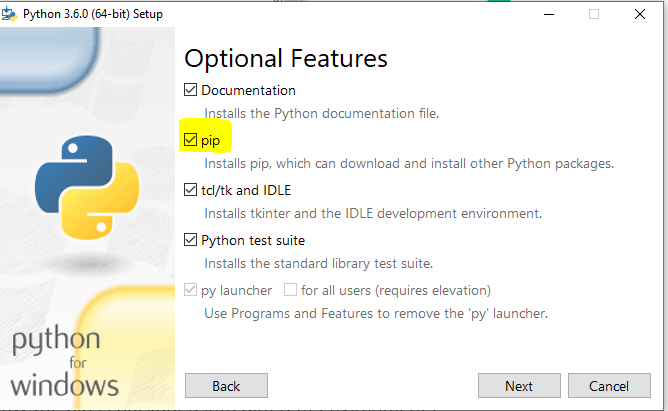
1) On windows, run your Python installer once again and ensure you check the install pip checkbox in the wizard as shown in the below image.

Install pip on windowsInstall pip on windows

2) On Linux, you can install pip3 by running an apt-get command in your terminal.

sudo apt-get -y install python3-pip

Once you have run this command, you should use the pip3 package manager commands to download the packages. 

3) On Mac, pip is bundled with the Python distributable, so you need to re-install Python once again by executing the below command. Once you have re-installed Python 3, you should be able to execute pip commands.

brew install python3

Installing pip for Python 2

If you are still working on Python 2 and want to install an older version of a pip, you can install it by running the below command on your Linux machine.

sudo easy_install pip

This command installs the pip command onto your system. If you do not already have easy_install installed, install it using the following Linux command:

sudo apt-get install python-setuptools

The post Python pip: command not found Solution appeared first on ItsMyCode.


from Planet Python
via read more

ItsMyCode: Python FileNotFoundError: [Errno 2] No such file or directory Solution

ItsMyCode |

In Python, when you reference a file, it needs to exist. Otherwise, Python will return a FileNotFoundError: [Errno 2] No such file or directory.

In this tutorial, let’s look at what is FileNotFoundError: [Errno 2] No such file or directory error means and how to solve this in your code.

Python FileNotFoundError: [Errno 2] No such file or directory

Python will raise FileNotFoundError when you use the OS library and try to read a file or write a file that does not exist using an open() statement.

It is, of course, excluding you are creating a new file and writing content to the file. Any error message which states FileNotFoundError means that Python cannot find the path of the file you are referencing.

Example FileNotFoundError

The below code will list all the files in a specified folder. We will be using the OS module and os.listdir() method to get a list of files in the specified folder.

import os
for f in os.listdir("/etc"):
        print(f)

Output

Traceback (most recent call last):
  File "Main.py", line 2, in <module>
    for f in os.listdir("/etc/test"):
FileNotFoundError: [Errno 2] No such file or directory: '/etc/test'

Now you can see that Python is throwing FileNotFoundError: [Errno 2] No such file or directory since the folder reference is wrong here.

The possible reasons for this error could be as follows.

Misspelled file name

The error will often occur due to misspelled filenames, so providing the correct file name would solve the issue.

Invalid file path or directory path

Sometimes you might give a wrong file path or directory path which does not exist. It usually happens even with the network path when it’s unreachable. So ensure that the file path is correct and if you are placing the file in the network path, make sure it’s reachable and accessible.

Using a relative path

If you use a relative path, the file would be searched in the current working directory and not in the original path. So ensure you give an absolute path of the file to resolve the error.

Solution to FileNotFoundError: [Errno 2] No such file or directory

We will correct our above code by referencing the proper directory where the file exists. This time, we will also use an absolute path instead of a relative path to ensure it’s referencing the correct directory.

import os
for f in os.listdir("C:/Projects/Tryouts/etc"):
        print(f)

Output

python.txt
index.md
Python Data Science Ebook.pdf

The post Python FileNotFoundError: [Errno 2] No such file or directory Solution appeared first on ItsMyCode.


from Planet Python
via read more

TestDriven.io: Working with Static and Media Files in Django

This article looks at how to work with static and media files in a Django project, locally and in production. from Planet Python via read...